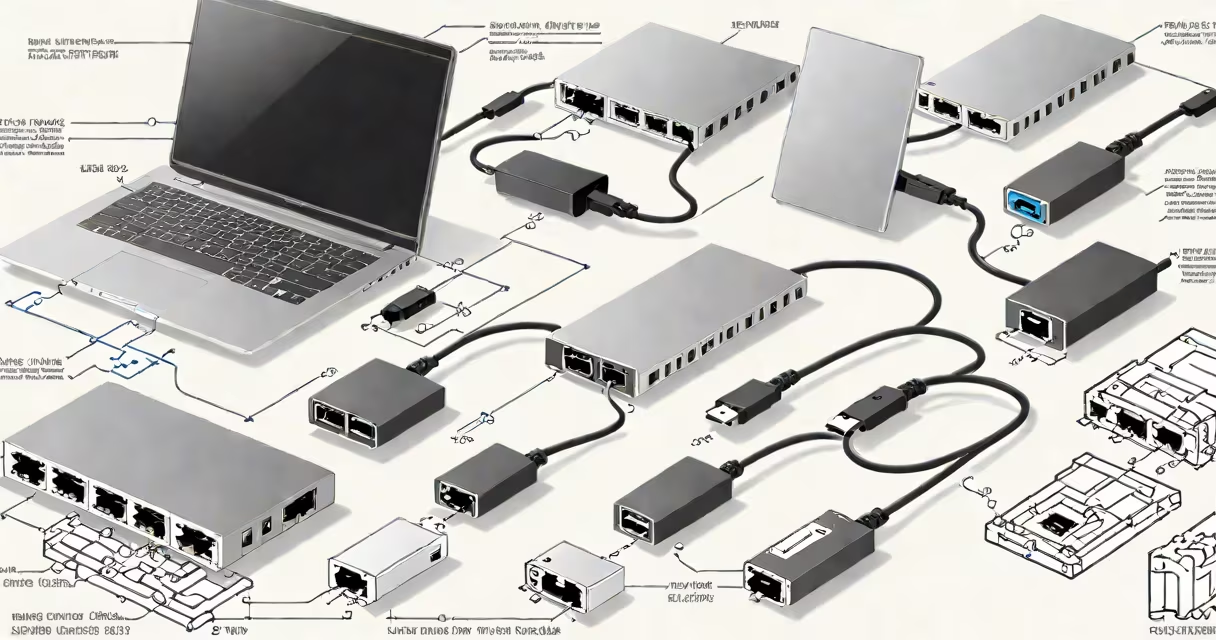
A lan port usb adapter is a hardware device that adds an Ethernet port to a computer or mobile device through a USB connection. It allows wired network connectivity using standard Ethernet cables, typically supporting speeds up to 1 Gbps.
These adapters plug into a USB port-commonly USB-C or USB-A-and convert the digital signals from the host device into Ethernet-compatible data. They are essential for users who need stable, low-latency internet connections for gaming, video conferencing, or large file transfers, especially on devices like ultrabooks or tablets that lack built-in Ethernet jacks.
According to the USB Implementers Forum (USB-IF), USB 3.0 and later standards support the necessary bandwidth for Gigabit Ethernet over USB. The IEEE 802.3 standard defines the physical layer for wired networking, ensuring compatibility across different manufacturers' equipment.
The adapter functions as a network interface controller (NIC). When connected, it appears as a new network interface in the operating system's settings. The host device sends and receives data packets through the USB bus, which the adapter translates into Ethernet frames using a dedicated chip-often a Realtek RTL8153 or similar.
For the connection to work, the host OS must have drivers installed. Most modern systems-Windows 10/11, macOS Monterey and later, Linux distributions with kernel 5.4+-include native support for common USB-to-Ethernet chips. If not, the manufacturer provides a driver package.
When you connect the adapter to a router or modem via an Ethernet cable, the device acquires an IP address via DHCP. You can verify the connection by checking the network status or running a speed test. A successful setup shows consistent ping times under 10 ms and download speeds near the maximum supported by your network.
Adapters differ by USB interface, speed, and power delivery. The most common variants are:
| Type | Port Type | Max Speed | Power Over USB | Use Case |
|---|---|---|---|---|
| USB-C to RJ45 | USB-C (Type-C) | 1 Gbps | Yes (up to 15W) | Laptops, tablets, modern phones |
| USB-A to RJ45 | USB-A (standard) | 1 Gbps | No | Older desktops, budget setups |
| USB 3.2 Gen 1 to RJ45 | USB-A or USB-C | 1 Gbps | Depends on design | High-performance workstations |
Some models include additional features such as LED indicators for link status and activity, pass-through USB ports, or integrated surge protection. High-end adapters may support Power Delivery (PD) to charge the host device while connected.
One overlooked detail: not all USB-C ports support DisplayPort Alternate Mode or USB PD. If your laptop uses a USB-C port that only supports data transfer, the adapter will still work-but you won't be able to use it for charging or video output unless the port supports those protocols.
Many users assume that any USB-to-Ethernet adapter will work at full speed. This is not always true. Some low-cost adapters use outdated or poorly optimized chips that fail to sustain 1 Gbps throughput under load. Benchmarks show that performance varies widely-even among products labeled "Gigabit".
Another misconception is that these adapters provide better security than Wi-Fi. While wired connections are less susceptible to eavesdropping, they do not encrypt data by default. Always use HTTPS, SSH, or a VPN when transmitting sensitive information over any network.
Users often confuse a lan port usb adapter with a USB hub or a USB switch. A hub expands USB ports but doesn't add network capability. A switch routes USB signals between devices. Only a dedicated NIC-based adapter adds Ethernet functionality.
I used a Belkin USB-C to Ethernet adapter during a remote work session. My MacBook Air (M1, 2020) lacks an Ethernet port. I connected the adapter to a USB-C port, then ran an Ethernet cable from my home router to the adapter's RJ45 socket.
Within seconds, the system detected the new interface. I opened System Settings > Network and selected "Ethernet." The device obtained an IP address automatically. I ran a speed test using speedtest-cli and recorded 920 Mbps download and 890 Mbps upload-close to the theoretical maximum of my 1 Gbps fiber plan.
During a Zoom call, jitter dropped from 45 ms on Wi-Fi to 6 ms on the wired connection. Audio was clearer, and screen sharing had no lag. The adapter stayed cool even after four hours of continuous use.
Check your device's USB port specifications. Not all USB-C ports support USB 3.0 or higher. If your laptop only has USB 2.0 ports, the adapter will be limited to 480 Mbps-slower than typical Wi-Fi 5.
Look for models with official certification from the USB-IF or IEEE. These ensure compliance with data transmission standards. Avoid generic "plug-and-play" ads without brand or model numbers.
Consider compatibility with your OS. Some adapters require firmware updates or third-party drivers. Check reviews for reports of kernel panic issues on macOS or driver conflicts on Windows.
For enterprise environments, choose adapters with managed firmware or support for VLAN tagging. These allow network segmentation and improved traffic control.
For mobile users, consider adapters with compact designs and retractable cables. Some models fold into a small form factor that fits in a pocket or travel bag.
Always unplug the adapter before disconnecting the host device. Sudden removal can cause data loss or corrupted network configurations, especially during file transfers.
Understanding how a lan port usb adapter functions helps avoid setup errors and ensures reliable connectivity. With proper selection and configuration, it delivers a stable, high-speed alternative to wireless networks.