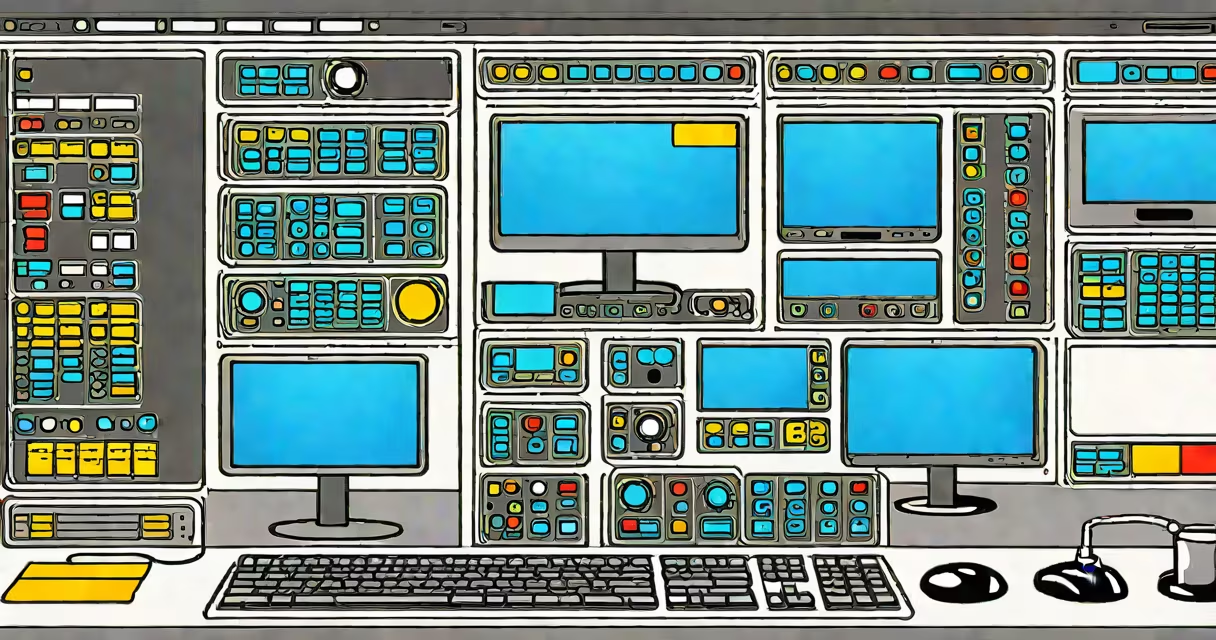
The control panel is a system interface in Windows that provides access to core operating system settings, hardware configurations, and user account management tools. It acts as a central command center for adjusting display resolution, managing installed programs, configuring network connections, and setting power options.
Introduced in Windows 95, the control panel predates modern settings apps but remains a foundational tool for system administration. It appears as a window with icons representing functions like date and time, sound, keyboard layout, and printer setup. Unlike application software, it doesn't run programs-it configures how the system behaves.
For example, changing your screen brightness requires going through through the control panel's "Power Options" or "Display" settings. Removing a program involves selecting "Programs and Features." These actions alter system behavior rather than launching new processes.
The control panel operates through a collection of .cpl files-Windows system components stored in the System32 directory. When you open the control panel, the OS loads these files and displays their associated icons. Each icon launches a specific executable or dialog box tied to a system function.
Behind the scenes, these components communicate with the Windows Registry and the Local Security Authority Subsystem Service (LSASS) to apply changes. For instance, modifying user permissions via "User Accounts" triggers updates to the registry under HKEY_LOCAL_MACHINE\SOFTWARE\Microsoft\Windows NT\CurrentVersion\ProfileList.
Changes made through the control panel don't always take effect immediately. Some require a restart, especially those affecting low-level drivers or startup behaviors. The system logs these modifications in Event Viewer under the "System" and "Application" channels, which administrators can review for troubleshooting.
Control panel categories fall into four functional groups: system management, user management, hardware configuration, and network settings. Below is a breakdown of key modules:
| Category | Common Functions | Example Use Case |
|---|---|---|
| System & Security | Firewall settings, antivirus configuration, backup tools | Enabling Windows Defender Firewall to block unauthorized network traffic |
| User Accounts | Create/delete users, set passwords, manage permissions | Adding a new administrator account for a family member |
| Hardware and Sound | Manage printers, adjust audio output, update drivers | Installing a new USB webcam driver via Device Manager |
| Network and Internet | Set up Wi-Fi profiles, configure proxy settings, troubleshoot connections | Resolving intermittent internet drops by resetting TCP/IP stack |
Each module uses native Windows APIs. For example, the "Power Options" module calls the PowerCfg.exe utility to modify power plans. This ensures consistency across versions and prevents conflicts with third-party software.
Many users confuse the control panel with the Start menu or modern Settings app. The control panel is not a launcher for applications-it doesn't open Word or Chrome. Instead, it modifies how the OS runs.
A frequent error is assuming that all settings in the control panel affect the current user. In reality, many settings apply globally. Changing the default printer in the control panel affects all users on the machine unless restricted by group policy.
Another misconception is that the control panel is obsolete. While Microsoft introduced the Settings app in Windows 10, the control panel still handles tasks the new interface lacks. For example, only the control panel allows direct access to "Advanced Sharing Settings" for file sharing between computers on a local network.
When a user reports that their monitor turns off after five minutes of inactivity, the solution lies in the control panel. Open "Control Panel > Power Options > Change plan settings > Turn off display," then set the timeout to 30 minutes. This change persists across reboots and applies to all user sessions unless overridden by a domain policy.
I encountered this issue while setting up a home office computer for a client. The default power plan was set to "Balanced," which included aggressive display sleep settings. Adjusting the control panel settings resolved the problem instantly-no driver updates or hardware changes were needed.
While both interfaces manage system behavior, they differ in architecture and scope. The control panel uses legacy .cpl files and relies on older COM-based interfaces. The modern Settings app uses UWP (Universal Windows Platform) apps and integrates with cloud services like Microsoft Account sync.
For example, adding a new user account through the control panel requires entering credentials in a modal dialog. In Settings, the process happens within a web-like flow that pulls profile data from Azure AD if the device is domain-joined. The control panel offers deeper access to local security policies, such as disabling Ctrl+Alt+Delete login requirement.
According to Microsoft's documentation, the control panel remains supported in Windows 11, though it's hidden by default. Users can restore it via the "Turn Windows features on or off" dialog by enabling "Legacy Components." This confirms that Microsoft continues to maintain backward compatibility for enterprise and advanced users.
The control panel includes tools not available in Settings. The "Administrative Tools" folder contains utilities like Disk Management, Services, and Task Scheduler-critical for system maintenance and automation.
Understanding what is a control panel on a computer reveals its role as a persistent, low-level interface for system configuration. It's not a replacement for modern tools but a complementary layer that offers granular control over system behavior.
For users who need to troubleshoot boot issues, manage multiple user profiles, or configure network access, the control panel remains indispensable. Its structured layout and consistent behavior make it reliable across Windows versions-from XP to Windows 11.