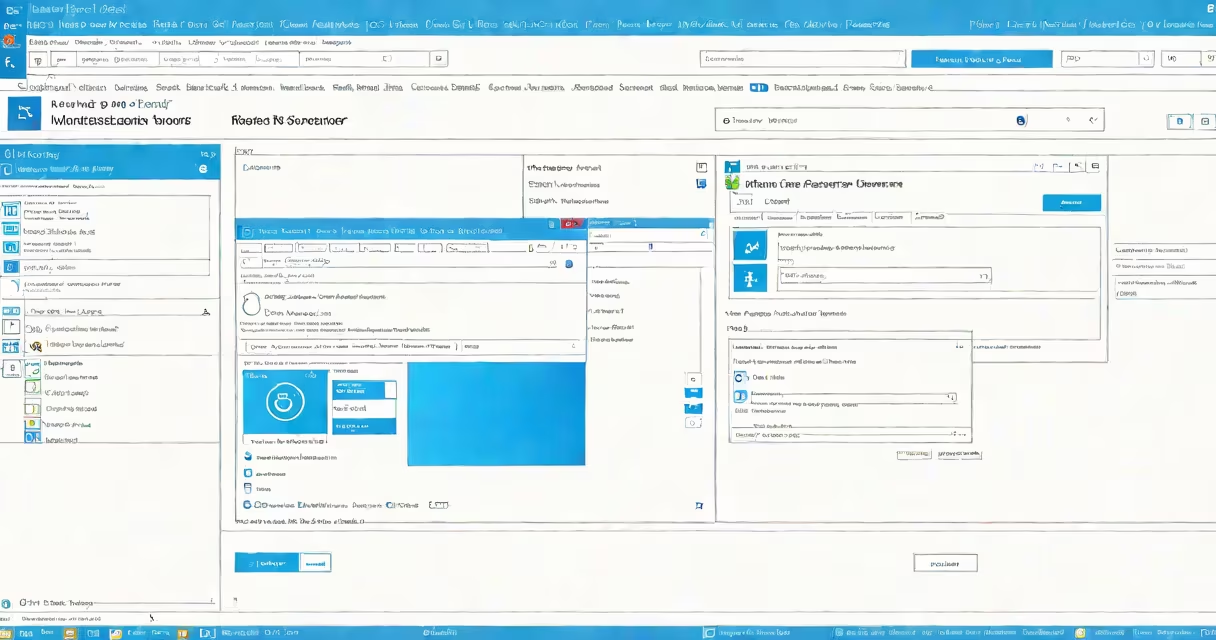
A Windows RDP server is a Windows-based system configured to accept incoming Remote Desktop Protocol connections, allowing users to remotely control a desktop or server environment from another device. It runs the RDP service on port 3389 and supports encrypted authentication and session management.
Remote Desktop Protocol (RDP) is Microsoft's native remote access technology. When enabled, a Windows RDP server allows administrators and authorized users to log in to a machine as if they were sitting in front of it. This includes full keyboard, mouse, and display control, file transfers, clipboard sharing, and printer redirection. The server handles authentication via Windows credentials, supports multiple simultaneous sessions (depending on licensing), and maintains session persistence during network interruptions.
Windows RDP server functionality is available on several editions: Windows 10 Pro, Windows 11 Pro, and all versions of Windows Server. Home editions do not support inbound RDP connections by default. To enable RDP, users must activate the feature through System Properties or Group Policy, then configure firewall rules to allow traffic on TCP port 3389.
When a client connects to a Windows RDP server, the RDP protocol establishes a secure channel using Transport Layer Security (TLS) version 1.2 or higher. The client sends authentication details-typically a username and password-to the server. If valid, the server creates a session and streams graphical output back to the client. All input from the client (keystrokes, mouse movements) is sent to the server in real time.
The server uses the Windows Session Manager to allocate a virtual desktop session. This session runs within a protected environment isolated from the physical console. Multiple users can connect simultaneously if the server is licensed for Remote Desktop Services (RDS), which requires a license server and proper activation.
For example, a system administrator in New York can connect to a Windows Server 2022 machine hosted in a data center in Virginia using the Remote Desktop Connection app on their laptop. After entering the server's IP address and credentials, they gain full access to the server's desktop, run PowerShell commands, manage services, and install software-all without being physically present.
There are two primary deployment models for Windows RDP servers:
| Deployment Type | Use Case | Configuration Requirements | Security Notes |
|---|---|---|---|
| Single-user RDP | Remote access to a personal or work computer | Enable RDP in System Properties, open firewall port 3389, set user permissions | Requires strong passwords and multi-factor authentication (MFA) |
| Remote Desktop Session Host (RDSH) | Multiple users accessing shared applications or desktops | Install Remote Desktop Services role, configure licensing, set up session collection | Needs dedicated load balancing and monitoring; not suitable for unmanaged environments |
For single-user systems, enabling RDP is straightforward: go to System Properties → Remote → Allow remote connections. However, many organizations fail to restrict access to specific IP ranges or disable legacy protocols like RDP over SSL, leaving systems exposed to brute-force attacks.
According to Microsoft's official documentation, RDP should only be accessible from trusted networks or behind a secure gateway. The company recommends disabling RDP entirely on public-facing machines unless absolutely necessary, and using Network Level Authentication (NLA) to prevent unauthorized login attempts during the initial handshake.
Many users assume that enabling RDP automatically secures a system. This is false. By default, RDP listens on port 3389 and accepts connections from any IP address. Without additional controls, attackers can scan the internet for open RDP ports and attempt credential stuffing or brute-force attacks.
A critical mistake is exposing RDP directly to the internet without a firewall, VPN, or jump host. A 2023 report by the Cybersecurity and Infrastructure Security Agency (CISA) identified over 1.2 million publicly accessible RDP endpoints, many running outdated Windows versions with known vulnerabilities. These systems are prime targets for ransomware and lateral movement attacks.
Another misconception is that RDP only works between Windows machines. While the native client is built into Windows, RDP clients exist for macOS, Linux, iOS, and Android. Tools like mRemoteNG, Royal TS, and the Microsoft Remote Desktop app allow cross-platform access. The protocol itself is platform-agnostic-it relies on the RDP standard, not the operating system.
During a penetration test I conducted for a small business, we discovered that a Windows 10 machine had RDP enabled and exposed to the internet. The account used was a local admin with a weak password. Within 12 minutes of scanning, we gained full system access. The organization had no logging or alerting in place. This incident highlights why RDP should never be left open without strict access controls.
To secure a Windows RDP server, follow these steps:
Alternative solutions include using PowerShell Remoting (WinRM) for command-line administration, SSH with OpenSSH for Linux-style access, or cloud-based tools like Azure Bastion or AWS Systems Manager. These methods often provide better audit trails and integration with identity providers.
Windows RDP server remains a useful tool for remote administration. Its ability to deliver full desktop access securely makes it indispensable in IT operations. But misuse leads to serious breaches. Always treat RDP as a high-risk service requiring layered protection.
Understanding how Windows RDP server functions-and how it can be misused-is essential for anyone managing Windows systems. Proper configuration, ongoing monitoring, and adherence to security policies ensure remote access remains both convenient and safe.