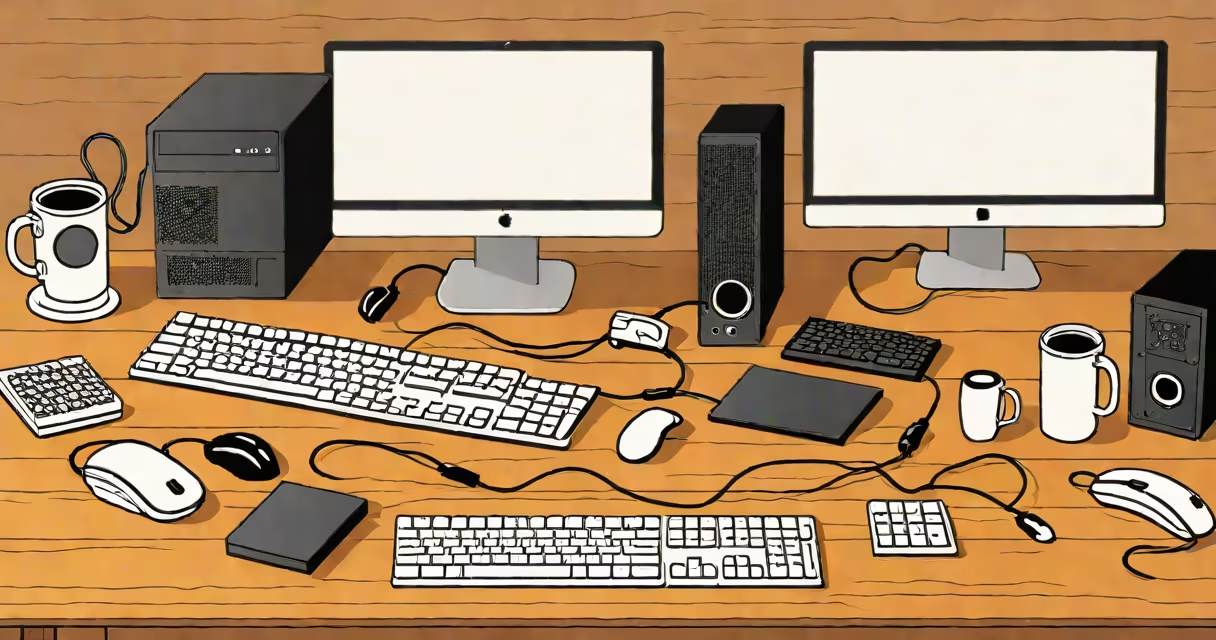
External computer parts are hardware components that connect to a computer via ports like USB, HDMI, or Thunderbolt to extend its capabilities beyond the internal components. These devices plug in after the system is assembled and operate independently of the motherboard.
These peripherals enable interaction with the computer, expand storage, improve display quality, or support specialized tasks. Common examples include keyboards, mice, external hard drives, webcams, and monitors. They are not essential for booting the system but improve usability and functionality.
Unlike internal parts such as the CPU or RAM, external components do not require opening the case. They typically draw power from the host device or a separate supply. Most modern systems recognize them automatically through plug-and-play protocols, eliminating the need for manual driver installation in many cases.
External computer parts communicate with the host system through standardized connection interfaces. USB-C, USB-A, HDMI, DisplayPort, and Thunderbolt are the most common. When plugged in, the device sends identification signals to the operating system, which then assigns a device driver and mounts the hardware for use.
For example, plugging in a USB flash drive triggers the OS to detect the device, assign a drive letter (like D:\), and make the file system accessible. The process takes less than a second on modern systems. This automatic recognition relies on the USB Mass Storage Class specification, which defines how storage devices should behave.
Some peripherals require additional software. A high-end graphics tablet may need calibration tools, and a professional microphone often includes audio processing software. However, basic input and storage devices function without extra programs.
External computer parts fall into functional categories based on their role:
| Type | Purpose | Examples | Connection Type |
|---|---|---|---|
| Input Devices | Send user commands to the computer | Keyboard, mouse, touchscreen, webcam | USB, Bluetooth, HDMI |
| Output Devices | Display or produce results from the computer | Monitor, printer, speakers, headphones | HDMI, DisplayPort, USB, 3.5mm jack |
| Storage Devices | Store data externally | External SSD, HDD, USB flash drive | USB-A, USB-C, Thunderbolt |
| Specialty Devices | Support niche functions | Graphics tablet, MIDI controller, VR headset | USB, USB-C, proprietary port |
Each category serves a distinct purpose. Input devices translate human actions into digital signals. Output devices convert processed data into forms humans can perceive. Storage devices offer portable or supplemental space. Specialty devices cater to creative professionals, gamers, or technical users.
External computer parts are essential in both home and professional environments. A graphic designer uses a Wacom tablet for precise drawing, while a remote worker connects a dual-monitor setup to increase screen real estate. A photographer backs up raw image files to an external SSD after shooting.
Consider a student working on a research paper. They use a mechanical keyboard for faster typing, a noise-canceling headset for focus during video calls, and an external hard drive to store project backups. All these devices connect via USB-C ports on a laptop and function immediately upon plugging in.
Businesses rely heavily on external peripherals. A retail store runs point-of-sale systems with barcode scanners, receipt printers, and customer-facing displays-all connected externally. These devices reduce downtime because they can be replaced or upgraded without affecting the core system.
Many people mistake external computer parts for internal components. For example, a solid-state drive (SSD) inside a computer case is internal. But the same SSD in a metal casing with a USB cable is an external device. The physical form doesn't define the category-it's the connection method and location relative to the case.
Another frequent error is assuming all USB devices are external computer parts. A USB-powered fan or LED strip is not a computer peripheral-it's a consumer electronics accessory. True external computer parts interact directly with the OS as input, output, or storage devices.
A key distinction: internal parts are required for the computer to function. External parts are optional enhancements. Removing a monitor doesn't stop the system from running. Removing the CPU does.
Not all external devices are slower than internal ones. Modern NVMe SSDs connected via Thunderbolt 4 can achieve speeds exceeding 2,000 MB/s-comparable to internal PCIe drives. The bottleneck is often the interface, not the device itself.
Also, external GPUs (eGPUs) exist and can boost gaming or rendering performance. They connect via Thunderbolt and provide dedicated graphics processing. While not as useful as internal GPUs, they offer a viable upgrade path for laptops lacking discrete graphics.
One overlooked fact: some external devices consume more power than expected. A high-resolution webcam with auto-focus and low-light enhancement can draw 500mA at 5V-over 2.5 watts. On a laptop with limited battery capacity, this adds measurable drain during long video sessions.
Imagine building a workspace for freelance writing. The base system is a 13-inch MacBook Air. To improve productivity, the user adds:
After connecting all devices, the Mac recognizes each within seconds. The monitor extends the desktop. The keyboard and mouse replace the trackpad. The SSD appears as a mounted volume. No drivers were needed-macOS handles plug-and-play smoothly.
This setup increases efficiency by reducing eye strain, improving typing speed, and providing secure, fast access to large files. The entire configuration cost under $600 and required no technical expertise.
Understanding external computer parts helps avoid overspending on unnecessary upgrades. Knowing which devices serve specific roles prevents confusion between what's essential and what's optional.