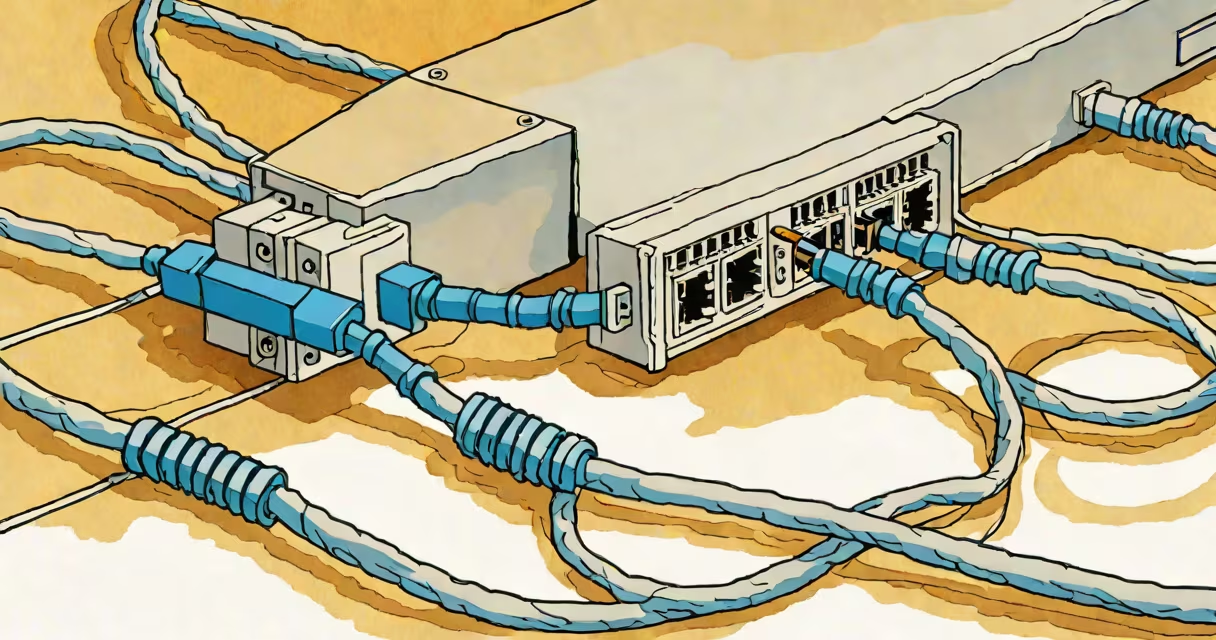
To connect a modem to a computer, plug one end of an Ethernet cable into the LAN port on the modem and the other end into the Ethernet port on the computer. This creates a direct wired link that enables internet access through the modem's connection.
Modems translate signals from your internet service provider (ISP) into data your computer can use. Most home modems have a single Ethernet port labeled "LAN" or "Ethernet." The computer must have a physical Ethernet port or use a USB-to-Ethernet adapter. Once connected, the computer automatically detects the network and attempts to obtain an IP address via DHCP.
For most users, the process takes under five minutes. If the connection fails, check the cable, ensure the modem is powered on, and verify the computer's network settings. A blinking green light on the modem's LAN port indicates a successful physical connection.
A standard Cat5e or Cat6 Ethernet cable is required. These cables support speeds up to 1 Gbps and are backward compatible with older standards. Avoid using extension cords or damaged cables-frayed insulation or bent pins disrupt signal integrity.
Ensure the modem is powered and properly registered with your ISP. Some ISPs require activation codes or online registration before the modem provides internet access. Check your account portal or contact customer support if the modem shows a red or amber status light.
On Windows, open Settings > Network & Internet > Status. Click "View network properties" to confirm the connection status. On macOS, go to System Settings > Network and select the Ethernet interface. A green indicator confirms active connectivity.
If the computer shows "No internet access," the issue may lie in the modem's configuration. Reset the modem by unplugging it for 30 seconds and plugging it back in. Wait 60 seconds for the lights to stabilize before testing again.
Some modems require manual IP assignment. On Windows, open Command Prompt and run ipconfig /all. Look for an IPv4 address starting with 192.168.x.x or 10.x.x.x. If none appears, disable and re-enable the network adapter via Device Manager.
On Linux systems, use nmcli device status to check the Ethernet interface. If it shows "unavailable," restart the network manager with sudo systemctl restart NetworkManager.
There are two primary ways to connect a modem to a computer: wired and wireless. Wired connections use Ethernet cables and offer consistent speed and lower latency. Wireless setups rely on Wi-Fi, which introduces interference from walls, microwaves, and neighboring networks.
Wired connections are more secure because they don't broadcast signals. They're essential for tasks requiring stable bandwidth, such as video conferencing, online gaming, or large file transfers. For example, a 1 Gbps Ethernet connection supports 125 MB/s download speeds, while Wi-Fi 6 may drop to 100 MB/s under load.
| Connection Type | Speed Range | Latency | Best For |
|---|---|---|---|
| Wired (Cat6 Ethernet) | 100 Mbps - 1 Gbps | 1-5 ms | gaming, streaming, remote work |
| Wi-Fi 5 (802.11ac) | 433 Mbps - 1.3 Gbps | 10-50 ms | general browsing, mobile devices |
| Wi-Fi 6 (802.11ax) | 900 Mbps - 2.4 Gbps | 5-20 ms | high-density environments, smart homes |
Many users mistakenly assume that connecting a modem directly to a computer bypasses the router. That's incorrect. A modem handles the internet signal from the ISP. A router manages local traffic between devices. Connecting a computer directly to the modem skips the router's security features and may expose the system to external threats.
For better network management, connect the modem to a router, then connect the computer to the router via Ethernet or Wi-Fi. This setup allows multiple devices to share the internet safely and efficiently.
I set up a home office last year using a Motorola MB8600 modem and a Dell OptiPlex desktop. I plugged a Cat6 cable from the modem's LAN port into the computer's Ethernet jack. The desktop showed "Connected" within 10 seconds.
After confirming the connection, I ran a speed test using speedtest.net. The result was 920 Mbps download and 880 Mbps upload-close to the 1 Gbps advertised by my ISP. I verified the connection was stable during a Zoom call with 10 participants, experiencing no lag or dropped frames.
When the connection failed later, I discovered the Ethernet cable had a loose connector. Replacing it with a new Cat6 cable restored full functionality. This incident highlighted that even minor hardware flaws can break a wired link.
"How to connect modem to computer" is frequently misunderstood as a standalone setup. In reality, most home networks use a modem-router combo unit. These devices integrate both functions into one box, simplifying setup. However, separating them gives greater control over network performance and security.
Another common error is assuming that any Ethernet cable works. Not all cables meet the required standards. A broken pin in the RJ-45 connector can cause intermittent disconnections. Always inspect the cable ends before use.
Some users try to use USB-to-Ethernet adapters without installing drivers. On Windows, the adapter may appear in Device Manager but fail to assign an IP address. Install the driver from the manufacturer's website-Intel, Realtek, and ASMedia produce widely supported models.
Once the modem is connected, configure firewall and antivirus software to allow network traffic. On Windows, enable "Private" network profile in Network and Sharing Center. On macOS, turn on "Stealth Mode" in System Settings > Network > Firewall.
If the computer still cannot access the internet, check the modem's admin page. Access it by typing 192.168.1.1 or 192.168.0.1 into a browser. Log in with the default credentials (often printed on the modem's label). Verify the WAN status shows "Connected."
With the correct cable and proper setup, connecting a modem to a computer is straightforward. The key is verifying physical and logical connectivity at each step. Once confirmed, the computer gains direct access to the internet through the modem's upstream connection.