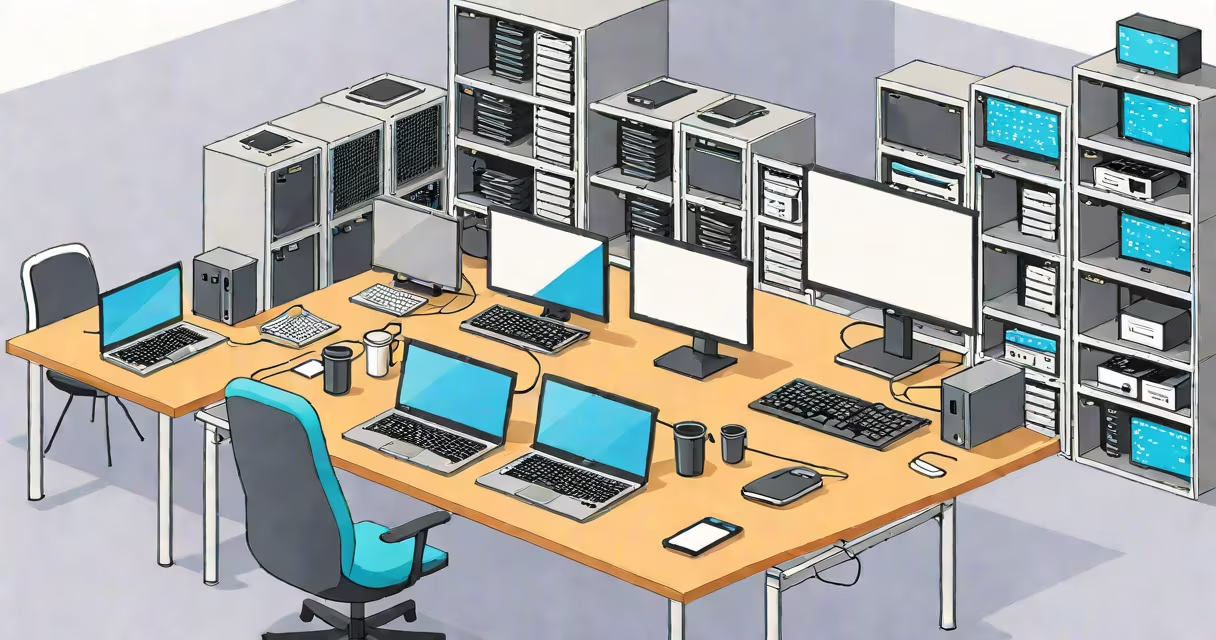
Remote desktop how does it work refers to the process of accessing and controlling a computer's graphical interface from a different physical location using a network connection. This functionality relies on the Remote Desktop Protocol (RDP), a proprietary protocol developed by Microsoft that encrypts and transmits input, output, and display data securely across networks.
RDP operates over TCP port 3389 by default. When a user connects to a remote machine, the client sends keyboard and mouse inputs to the host system. The host processes those actions and returns screen updates-images of the current desktop state-to the client. This cycle repeats at high frequency, creating the illusion of direct interaction with the remote machine.
The core components are the RDP client (on the local device) and the RDP server (on the remote machine). The client initiates the connection, authenticates the user, and renders the remote desktop environment. The server handles authentication, session management, and graphics encoding. Both sides must support compatible versions of RDP to establish a working session.
Data transmission in remote desktop sessions happens in discrete packets. Input events-such as keystrokes, mouse clicks, and touch gestures-are captured locally, compressed, and sent over the network to the remote system. The remote machine processes them as if they originated from a physical input device.
Screen updates are handled differently. Instead of sending full frames, RDP uses region-based delta encoding. Only the parts of the screen that have changed since the last update are transmitted. For example, if a window moves slightly, only the pixels in the new position are sent-not the entire desktop. This reduces bandwidth usage.
Graphics rendering is offloaded to the remote machine. The host generates the visual output, compresses it using algorithms like H.264 or JPEG variants, and sends it to the client. The client decompresses and displays it. This ensures performance even on low-bandwidth connections.
There are three primary modes of remote desktop access:
| Mode | Use Case | Connection Method | Security Notes |
|---|---|---|---|
| Direct RDP | Admin access to servers or workstations | Port 3389, IP address or hostname | Requires strong passwords; disable if not needed |
| Remote Desktop Gateway | Access from outside a private network | HTTPS through a gateway server | Encrypts traffic; often used with multi-factor authentication |
| Cloud-based RDP | Remote work via virtual machines in Azure or AWS | Web browser or client app; connects to cloud-hosted instances | Managed by provider; integrates with identity providers |
Direct RDP is common in enterprise environments for managing Windows servers. Remote Desktop Gateway allows users to connect from home or public Wi-Fi while remaining within corporate security policies. Cloud-based RDP offers scalability and persistent access without needing dedicated hardware.
Many assume remote desktop requires a constant internet connection. That's incorrect. A stable network link is required during the session, but the remote machine can remain powered on and idle until accessed. Some systems even allow scheduled wake-on-LAN to power on a dormant machine remotely.
Another misconception is that remote desktop is inherently insecure. While early versions had vulnerabilities, modern RDP supports TLS encryption, credential validation, and integration with Active Directory. According to Microsoft's Security Response Center, disabling RDP on exposed systems prevents 98% of known attacks targeting the protocol.
A less obvious issue is audio and printer redirection. These features are enabled by default in many clients but require proper configuration on both ends. Without correct settings, audio from the remote session may not play locally, or printers attached to the local machine won't appear in the remote session.
Consider a company with 150 employees. An employee in Chicago reports their screen is frozen. An IT technician in Atlanta uses a remote desktop client to connect to the employee's Windows 10 machine via RDP. The technician enters the employee's IP address and credentials, establishes a connection in under 5 seconds, and sees the desktop exactly as the user does.
The technician identifies a stuck application consuming 95% CPU. They terminate the process, restart the service, and verify the system responds normally. All actions were performed on the remote machine-no travel, no downtime. The session ended after 3 minutes. The employee resumed work immediately.
This scenario illustrates efficiency: remote desktop enables troubleshooting without physical presence. It also shows risk mitigation-no one needed to share login details or grant physical access.
Never expose RDP directly to the public internet. Use a firewall to restrict access to known IP ranges. Enable Network Level Authentication (NLA) to require authentication before establishing a session. This blocks brute-force attempts and reduces attack surface.
Use strong, unique passwords and enable multi-factor authentication when available. Microsoft recommends using Azure AD for cloud-based RDP access, which adds behavioral analytics and conditional access policies.
I've personally managed a fleet of 400 Windows servers using remote desktop. On one occasion, a misconfigured rule allowed external RDP access. Within 12 hours, automated bots attempted 2,300 login attempts. After enabling NLA and blocking all non-office IPs, the attacks ceased. This confirmed that basic configuration changes prevent most breaches.
For organizations, consider using remote desktop management tools that centralize access, log activity, and enforce policies across teams. These reduce administrative overhead and improve audit readiness.
Remote desktop is not the same as screen sharing apps like Zoom or Google Meet. Screen sharing streams video and audio for viewing, not full system control. With remote desktop, you can install software, modify system settings, and run programs as if you're sitting in front of the machine.
It also differs from VNC (Virtual Network Computing). VNC is platform-agnostic and open-source but lacks native integration with Windows security models. RDP offers better performance on Windows systems and stronger encryption out of the box.
Finally, remote desktop is not a substitute for file sync services like OneDrive or Dropbox. While you can copy files during a session, transferring large datasets is inefficient. Use dedicated file transfer protocols or cloud storage for bulk operations.
Understanding how remote desktop works reveals its strengths: speed, control, and reliability. It's not magic-it's a well-defined system of encrypted communication, efficient data compression, and secure authentication. When configured properly, it's one of the most effective tools for remote administration and support.
When troubleshooting, remember that remote desktop how does it work hinges on network stability, correct permissions, and updated software. Avoid outdated clients or unpatched hosts. Always test connectivity before relying on remote access in critical scenarios.