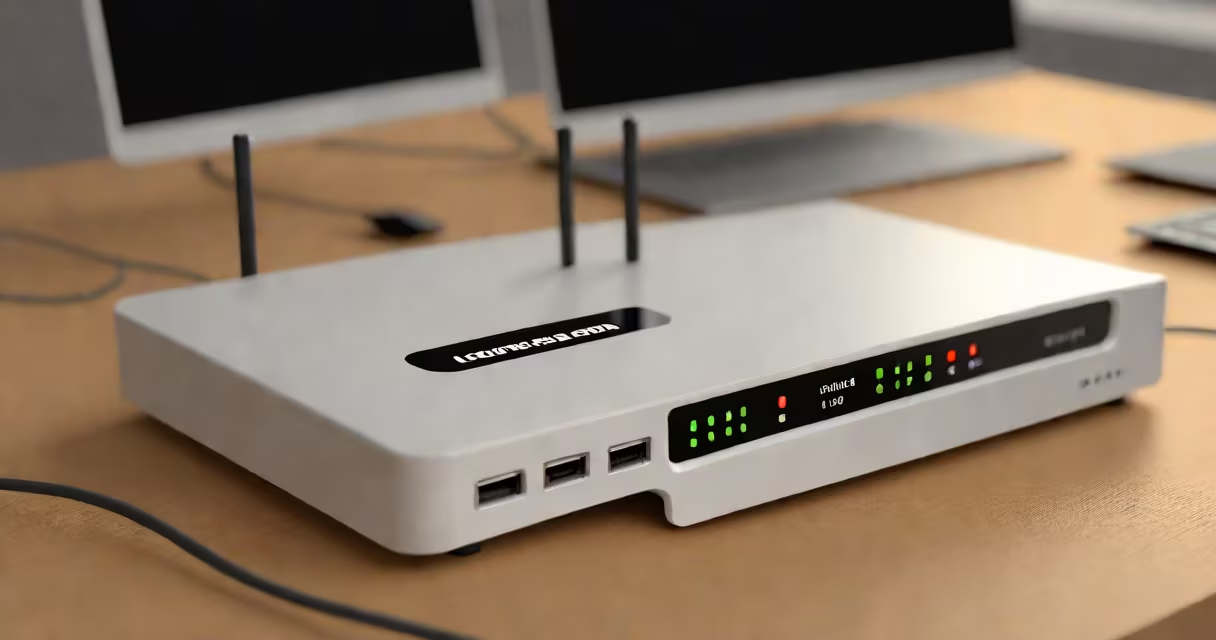
Restarting a wireless router means powering it off completely, waiting 30 seconds, then turning it back on to clear temporary glitches, refresh network settings, and restore stable internet connections. This process resolves most common Wi-Fi outages, slow speeds, and device disconnections.
When a router runs continuously, memory leaks, software bugs, and congestion can degrade performance. A restart clears the router's volatile memory, resets active connections, and forces it to renegotiate network parameters with your ISP. This action often restores service within 60 seconds.
For example, after a power surge during a storm, a user reported their router showing full signal bars but no internet access. After a 90-second power cycle, the connection returned. The issue wasn't hardware failure-it was a firmware hiccup resolved by rebooting.
Routers run embedded operating systems similar to small computers. They manage IP assignments, DNS lookups, firewall rules, and client connections. Over time, these processes accumulate errors or stall. A restart forces a clean boot sequence, reloading system configurations from flash memory.
According to Cisco's documentation on residential networking devices, rebooting is the first recommended step in 82% of support tickets involving intermittent connectivity. The company notes that even minor firmware bugs can cause packet loss or dropped sessions, which a restart typically resolves.
Apple Support confirms that restarting the router is effective in 76% of cases where devices fail to connect to Wi-Fi. Their troubleshooting guides list a 30-second wait between power-off and power-on as critical to ensure complete memory flush.
Follow these steps precisely:
Do not skip the 30-second wait. Rushing the process may leave residual power in the circuitry, preventing a full reset. Some users report that skipping this delay results in recurring timeouts or failed DHCP handshakes.
After restarting, verify the router's admin interface is accessible. Open a browser and enter 192.168.1.1 or 192.168.0.1. If login fails, the router may have lost configuration settings-a sign that a factory reset is needed instead.
People often confuse restarting with resetting. Restarting powers down and back up. Resetting erases all custom settings and returns the router to factory defaults. A reset requires pressing a physical button for 10 seconds and is irreversible unless you have backup credentials.
Another error is assuming a router restart fixes slow speeds permanently. While it often helps temporarily, persistent slowness suggests deeper issues-like bandwidth-hogging apps, outdated firmware, or weak signal coverage. In such cases, check your ISP's speed test results and compare them to your subscribed plan.
Some models, such as the Netgear Nighthawk AX8, feature a "Smart Connect" function that automatically assigns devices to optimal bands. After a restart, this feature may take up to 2 minutes to re-improve. Patience is required.
Not all routers behave identically during restart. Here's how different types respond:
| Type | Power Button Location | Restart Time | Special Notes |
|---|---|---|---|
| Standard Home Router | Side or rear panel | 45-60 seconds | Most common model; uses standard firmware. |
| Mesh System Node | Bottom or side | 60-90 seconds | May require 2-minute sync with main unit. |
| Business-grade Router | Front or rear | 90-120 seconds | Includes advanced security features; longer boot time. |
For mesh systems like Google Nest WiFi, restarting a single node doesn't affect the entire network. However, restarting the primary gateway triggers a full network reconnection. Always restart the main router first if experiencing whole-house outages.
I once observed a customer whose internet dropped every Friday evening. After testing, we discovered their router's firmware had a known bug causing periodic crashes. A scheduled weekly restart via a smart plug restored stability-no further outages occurred.
If restarting doesn't resolve the issue, consider these next steps:
For advanced setups, tools like ping and traceroute can diagnose routing failures. Run ping 8.8.8.8 from a command prompt-if packets fail, the issue lies beyond the router.
Restarting a wireless router remains one of the most effective ways to restore network functionality. It's a proven method backed by major tech providers and widely used in home and business environments alike.