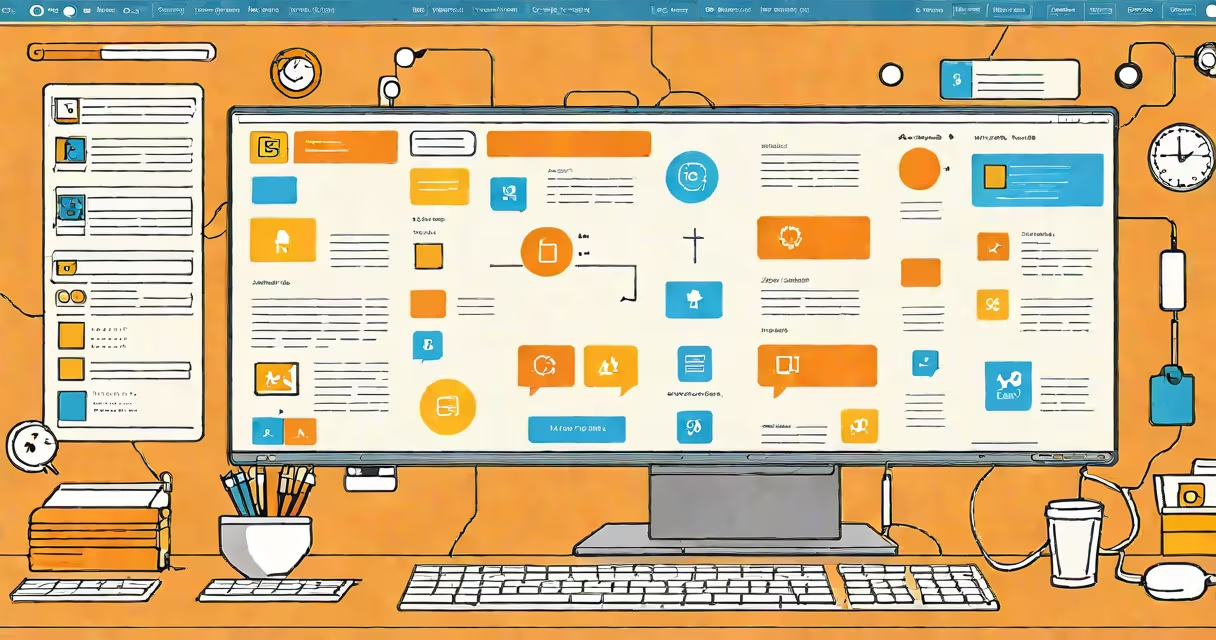
A GUI application is a software program that uses a graphical user interface-windows, icons, menus, and pointers-to allow users to interact with a computer through visual elements rather than typed commands.
GUI applications run on operating systems like Windows, macOS, and Linux. They display information and controls using shapes, colors, and images. Users click, drag, or tap to perform actions. This contrasts with command-line interfaces, where users type instructions using text-based syntax.
Examples include web browsers like Chrome, word processors such as Microsoft Word, media players like VLC, and design tools such as Adobe Photoshop. These programs rely on visual feedback to guide users through tasks.
When you launch a GUI application, the operating system allocates memory and loads the program's code into RAM. The application then requests a window from the OS's window manager. The window becomes a container for visual components like buttons, scrollbars, and text fields.
Each interaction-clicking a button, typing in a field, dragging a file-triggers an event. The application listens for these events and responds by updating the screen, saving data, or launching another process. For example, clicking "Save" in a document editor sends a command to write the file to disk.
Under the hood, GUI apps use frameworks like Qt (used in many Linux apps), Electron (for cross-platform desktop apps like Slack), or Apple's Cocoa structure. These provide pre-built tools for drawing buttons, handling mouse input, and managing layouts.
GUI applications fall into categories based on purpose and deployment:
| Type | Use Case | Example | Platform |
|---|---|---|---|
| Desktop Applications | Local productivity tools | Microsoft Excel | Windows, macOS |
| Web-Based GUI Apps | Browser-accessible tools | Google Docs | Any OS with a browser |
| Mobile GUI Apps | Smartphone and tablet use | iOS, Android | |
| Embedded GUI Systems | Dedicated devices | Car infotainment system | Custom hardware |
Web-based GUI apps run inside a browser but still use visual controls. They're built with HTML, CSS, and JavaScript. Though they don't install directly on the OS, they function like traditional GUI applications by responding to clicks and gestures.
Embedded GUI systems often have limited processing power. They use lightweight frameworks like LVGL (Lightweight Graphics Library) to render interfaces on small screens. These systems prioritize responsiveness and low resource usage over rich features.
Most people interact with computers through GUI applications because they require less technical knowledge. Instead of memorizing commands, users point and click. This lowers the barrier to entry for non-experts.
Studies show that users complete tasks faster with GUIs than with command-line tools. A 2019 study by the University of Washington found that participants completed common file management tasks 38% faster using a GUI compared to terminal commands.
GUIs also support multiple input methods. Touchscreens on tablets and smartphones rely on gesture-based interactions-swiping, pinching, tapping. These are natural extensions of GUI principles, making them intuitive even for children.
GUI applications are not inherently slower than command-line tools. Performance depends on implementation, not interface type. A well-coded GUI app can respond instantly; a poorly written one may lag regardless of interface.
Some assume GUI apps consume more memory. While true in some cases, modern systems handle this efficiently. A 2022 report from the Linux Foundation showed that average memory usage for GUI applications on Linux had dropped 41% since 2015 due to better rendering engines and optimized libraries.
Another misconception: GUI applications are always easier to use. That's not guaranteed. Poor design-overcrowded screens, unclear labels, inconsistent navigation-can make GUIs harder to learn than simple command-line alternatives. The success of a GUI depends on thoughtful layout and clear affordances.
I once spent two hours debugging a custom GUI tool I built for a client. The issue wasn't code-it was a misaligned button that didn't trigger on touch. The user expected a tap to work. After adjusting the hit area size, the problem vanished. This taught me that usability isn't just about visuals-it's about how users perceive and interact with them.
A GUI application is not the same as a command-line interface (CLI). CLI tools require users to type precise commands. They're efficient for automation and scripting. But they demand learning curves and error tolerance.
For example, the command rm -rf /home/user/Documents deletes files recursively. Mistyping it risks permanent loss. A GUI version would show a confirmation dialog and preview the files to be deleted. The trade-off is speed for safety.
GUI applications also differ from headless applications-those that run without a visible interface. Web servers, background daemons, and automated scripts often operate silently. They don't need windows or buttons. GUI applications serve human-facing tasks.
Consider editing a photo in Adobe Lightroom. You open the app, import a JPEG file, and see thumbnails in a grid. Clicking one opens it in a full-window view. Sliders adjust brightness, contrast, and color saturation. As you move a slider, the image updates in real time.
Each control is a visual element. The slider is a track with a draggable handle. The preview window shows changes instantly. When done, you click "Export" and choose a format and location. The app creates a new file and displays a progress bar.
This entire flow happens through visual cues. No commands are typed. No configuration files are edited. The user sees results immediately. That's the core of a GUI application: direct, visual interaction with immediate feedback.
Understanding what is a GUI application matters because it defines how people engage with technology. From smartphones to smart refrigerators, most digital experiences today are GUI-driven. The interface shapes the user's perception of capability, ease, and trust.